Key Features
As far as software emulations of the TB-303 go and according to Acid Voice, JC-303 comes right after popular commercial and proprietary plugins such as AudioRealism's Bass Line or D16's Phoscyon.
Authentic TB-303 Sound
The JC-303 sound engine is based on Open303, a project that has benefited from over 15 years of community-driven development, research, and reverse engineering to achieve an incredibly accurate TB-303 emulation that faithfully resembles the original.
A.I. Overdrive Section
JC-303 includes a GuitarML based overdrive section with game-changing pedal and amp emulations driven by research and development around artificial intelligence and machine learning.
Devilfish Inspired Mods
Created by Robin Whittle in 1993 and considered one of the most sought-after third-party modifications of the original TB-303, some of the Devil Fish modifications are also available with the JC-303 Bass Line.
Open-Source
From DSP to GUI, all the source code and resources to compile, learn, or modify are available for life and free. Want to contribute to the project? Simply fork the repository and submit a pull request.
Cross-Platform
JC-303 is available for all three major desktop music production platforms; Windows, macOS, and Linux.
Plugin Versatility
JC-303 offers VST2, VST3, LV2, CLAP and AU compatibility for seamless integration with your favorite DAWs.
Community Driven
JC-303 is a community-driven project open to contributions in coding, testing, bug reporting/fixing, design, and ideas for improvements. JC-303 also makes use of other open-source projects, such as Open303 and GuitarML.
Open303 Based
Over the course of a decade, a community of TB-303 enthusiasts led by Robin Schmidt, has been hard at work on the Open303 project, intending to create an open-source digital emulation of the TB-303. They dove deep into their oscilloscopes, engaged in circuit reverse engineering, and debated the inner workings of our beloved TB-303, striving to achieve the closest possible replica of the original TB-303 synthesizer with all its quirks and rich character. And all of this started in 2009 when Robin Schmidt posted a call for collaborators for his TB-303 emulation project on the KVR Audio forum.
GuitarML Integration
By capturing the sound output of real overdrive pedals and cabinets, the GuitarML project uses machine learning to train models that can be used in real-time to recreate the sound of actual overdrive! It is a community-driven project with a large and growing library of trained pedal and cabinet models available for download and testing, offering sheer unlimited tonal possibilities.
Installation instructions
Installing JC-303 is straightforward. Just follow the steps for your respective operating system:
- Download: Grab the correct ZIP package for your system (Windows, macOS, or Linux) from the download links at the top of this page.
- Extract: Unzip the downloaded file. You will find folders corresponding to different plugin formats (e.g.,
VST3,AUfor macOS,LV2,CLAPandVST). - Copy: Identify the plugin format(s) you want to install and copy the actual plugin files (e.g.,
JC303.vst3folder,JC303.component,JC303.dll,JC303.lv2folder and/orJC303.clap) from the extracted folder into your system's standard plugin directory for the respective format.
Default Plugin Locations:
- Windows:
- VST2 (.dll): Often
C:\Program Files\VSTPlugins,C:\Program Files\Steinberg\VSTPlugins, or a custom location set in your DAW. - VST3 (.vst3):
C:\Program Files\Common Files\VST3 - CLAP (.clap):
C:\Program Files\Common Files\CLAP - LV2 (.lv2): Often
%APPDATA%\LV2orC:\Program Files\Common Files\LV2
- VST2 (.dll): Often
- macOS:
- VST2 (.vst):
/Library/Audio/Plug-Ins/VST(system-wide) or~/Library/Audio/Plug-Ins/VST(user-specific) - VST3 (.vst3):
/Library/Audio/Plug-Ins/VST3(system-wide) or~/Library/Audio/Plug-Ins/VST3(user-specific) - Audio Unit (.component):
/Library/Audio/Plug-Ins/Components(system-wide) or~/Library/Audio/Plug-Ins/Components(user-specific) - CLAP (.clap):
/Library/Audio/Plug-Ins/CLAP(system-wide) or~/Library/Audio/Plug-Ins/CLAP(user-specific) - LV2 (.lv2):
/Library/Audio/Plug-Ins/LV2(system-wide) or~/Library/Audio/Plug-Ins/LV2(user-specific) (Note:~refers to your user home directory. System-wide installs are generally recommended unless you have specific reasons otherwise.)
- VST2 (.vst):
- Linux:
- VST2 (.so):
~/.vst,/usr/lib/vst,/usr/local/lib/vst - VST3 (.vst3):
~/.vst3,/usr/lib/vst3,/usr/local/lib/vst3(The.vst3item is usually a folder) - LV2 (.lv2):
~/.lv2,/usr/lib/lv2,/usr/local/lib/lv2(The.lv2item is usually a folder) - CLAP (.clap):
~/.clap,/usr/lib/clap,/usr/local/lib/clap(Note: Locations can vary depending on distribution and user configuration. Check your DAW's plugin path settings.)
- VST2 (.so):
macOS De-Quarantine Process (Important!)
Due to macOS security features (Gatekeeper), you must de-quarantine the plugin files after copying them, otherwise your DAW may not load them.
- Open the
Terminalapplication (you can find it in Applications > Utilities). - Run the following command for each plugin format you installed. You will need to enter your administrator password (it won't show characters as you type). Replace the path if you installed to your user library (
~/Library/...).
For Audio Unit (AU):
sudo xattr -rd com.apple.quarantine /Library/Audio/Plug-Ins/Components/JC303.component
For VST3:
sudo xattr -rd com.apple.quarantine /Library/Audio/Plug-Ins/VST3/JC303.vst3
For VST2:
sudo xattr -rd com.apple.quarantine /Library/Audio/Plug-Ins/VST/JC303.vst
For CLAP:
sudo xattr -rd com.apple.quarantine /Library/Audio/Plug-Ins/CLAP/JC303.clap
For LV2:
sudo xattr -rd com.apple.quarantine /Library/Audio/Plug-Ins/LV2/JC303.lv2
(Note: Ensure the plugin filename (JC303.component, JC303.vst3 etc.) matches the actual file you copied.)
Rescan: After copying the files (and de-quarantining on macOS), open your Digital Audio Workstation (DAW) and perform a plugin rescan if it doesn't automatically detect the new JC-303 plugin.
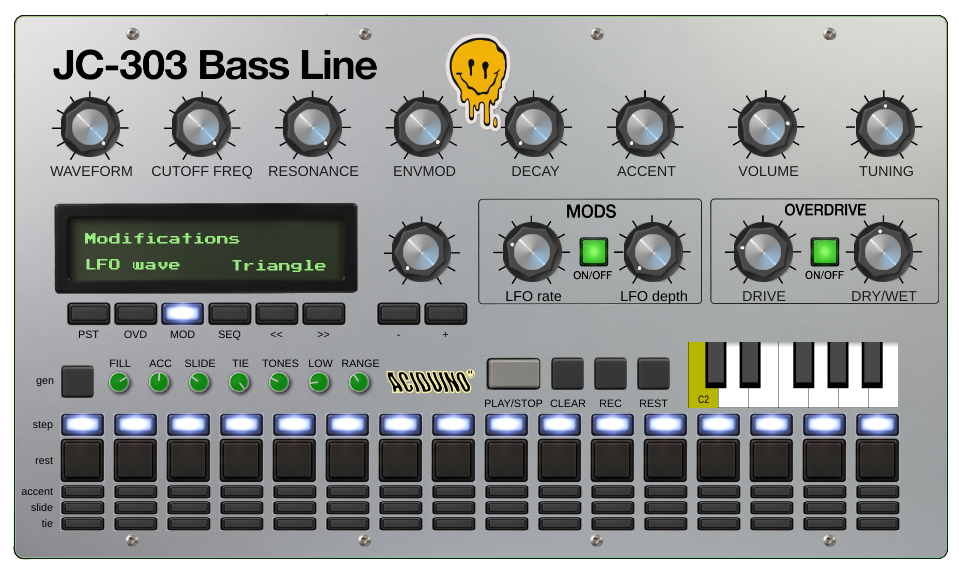
Step Sequencer
JC303 ships with a full acid step sequencer ported from Aciduino V2. It is a 16-step monophonic sequencer clocked sample-accurately from the audio thread, playing the built-in 303 engine and sending MIDI out to the host. Note length is the authentic 303 half-step (50%) gate, and slide/tie bridge correctly from the last step back to the first. The sequencer panel and manual below target the midilabv2 GUI theme.
Layout
Each of the 16 steps is a column of controls:
| Row | Control | Meaning |
|---|---|---|
step | LED | Selects the step to edit; also shows the playing step and the active pattern length |
rest | toggle | Note ON (toggle up) or rest (toggle down) |
accent | micro-toggle | Step plays with accent |
slide | micro-toggle | Step slides into the next one |
tie | micro-toggle | Step ties into the previous note |
Below the grid are the transport buttons (PLAY/STOP, REC, REST, CLEAR, gen), the generative mod knobs, and the on-screen octave keyboard.
Editing steps
- Left-click a step LED to select the step to edit. The selected step blinks; the step currently playing is highlighted. Clicking a step at or beyond the active pattern length snaps the selection to the last active step.
- Note/rest toggle: each step is a note by default; toggle it off to make it a rest, on to re-activate it.
- Accent / Slide / Tie are per-step toggles. A tie carries the previous note over, and handles wrap-around from the last step to the first.
- The keyboard always shows the note of the selected step.
Setting the pattern length
- Right-click any step LED to set the pattern length from 1 to 16 (the clicked step becomes the last step of the pattern). Steps beyond the length are kept but stay silent.
- Length can also be set with the
Lengthitem in theSEQmenu page.
Seq keyboard
- Click a key to set the note of the selected step.
- Mouse wheel over the keyboard transposes the note of the selected step by one octave per notch (the octave of the keyboard follows the note).
- In record mode the rec cursor is the target for both actions.
Record mode
Turn REC on to enter serial (step-by-step) entry. The record cursor starts at the currently selected step and advances one step per entered event, wrapping at the pattern length.
- Keyboard: press a key to record its note and advance. Existing accent/slide/tie flags on the step are kept.
- External MIDI: velocity 100 or above records the step with accent; striking a second note while one is still held records a slide (legato); tapping the sustain pedal (CC64, 127 on) records a rest.
RESTbutton: in record mode it records a rest and advances the cursor; outside record mode it turns the selected step into a rest and moves the selection to the next step.CLEARbutton resets the whole track to rests (all accents, slides and ties removed).
Generative
The gen button generates a random pattern across all 16 steps using:
| Knob | Range (default) | Meaning |
|---|---|---|
FILL | 0–100 (80) | % chance each step is ON (not a rest) |
ACC | 0–100 (50) | % chance of accent on an ON step |
SLIDE | 0–100 (30) | % chance of slide on an ON step |
TIE | 0–100 (100) | % chance of tie on a rest step |
TONES | 1–12 (4) | Number of pitch classes to snap to (1 = single note) |
LOW | 0–127 (20) | Lowest MIDI note in the random pitch range |
RANGE | 0–127 (48) | Range above LOW of the random pitches |
The sequencer is briefly muted while a pattern is generated so no stray notes play. Generating keeps the pattern length intact but overwrites the steps within it.
Transport and clock
PLAY/STOPstarts and stops the sequencer.- The
SEQmenu page in the LCD exposes:- Length — pattern length (1–16).
- Tempo — internal BPM (20–300); active only in
Internalsync mode. - Sync Mode —
Internal(free-running at Tempo),Host(follows the DAW transport position and tempo), orMidi Clock(follows external MIDI Start/Stop/Clock messages). - Start Mode —
Transport(starts on host transport or MIDI Start) orNote Trigger(starts automatically on the first incoming note, even while stopped).
Disclaimer: Roland and TB-303 are registered trademarks of the Roland Corporation.
JC-303 is not affiliated with or endorsed by Roland Corporation.